YouTube hosts over 800 million videos — lectures, tutorials, interviews, conferences, podcasts, and more. But here's the problem: you can't search inside a video, you can't skim it in 30 seconds, and you can't copy-paste a key quote from a talking head.
That's why converting YouTube to text has become one of the most searched-for tasks on the internet. Whether you're a student taking notes from a lecture, a content creator repurposing video into blog posts, or a professional who needs meeting transcripts, getting accurate text from YouTube videos saves hours of work.
In this guide, we'll walk through 7 proven methods to convert YouTube videos to text — from free built-in features to AI-powered tools that go beyond plain transcripts and can even turn your videos into listenable podcasts.
💡 What makes this guide different: We don't just cover basic transcription. You'll also learn how to generate structured summaries, chapter breakdowns, and even AI-narrated podcast audio from any YouTube video.
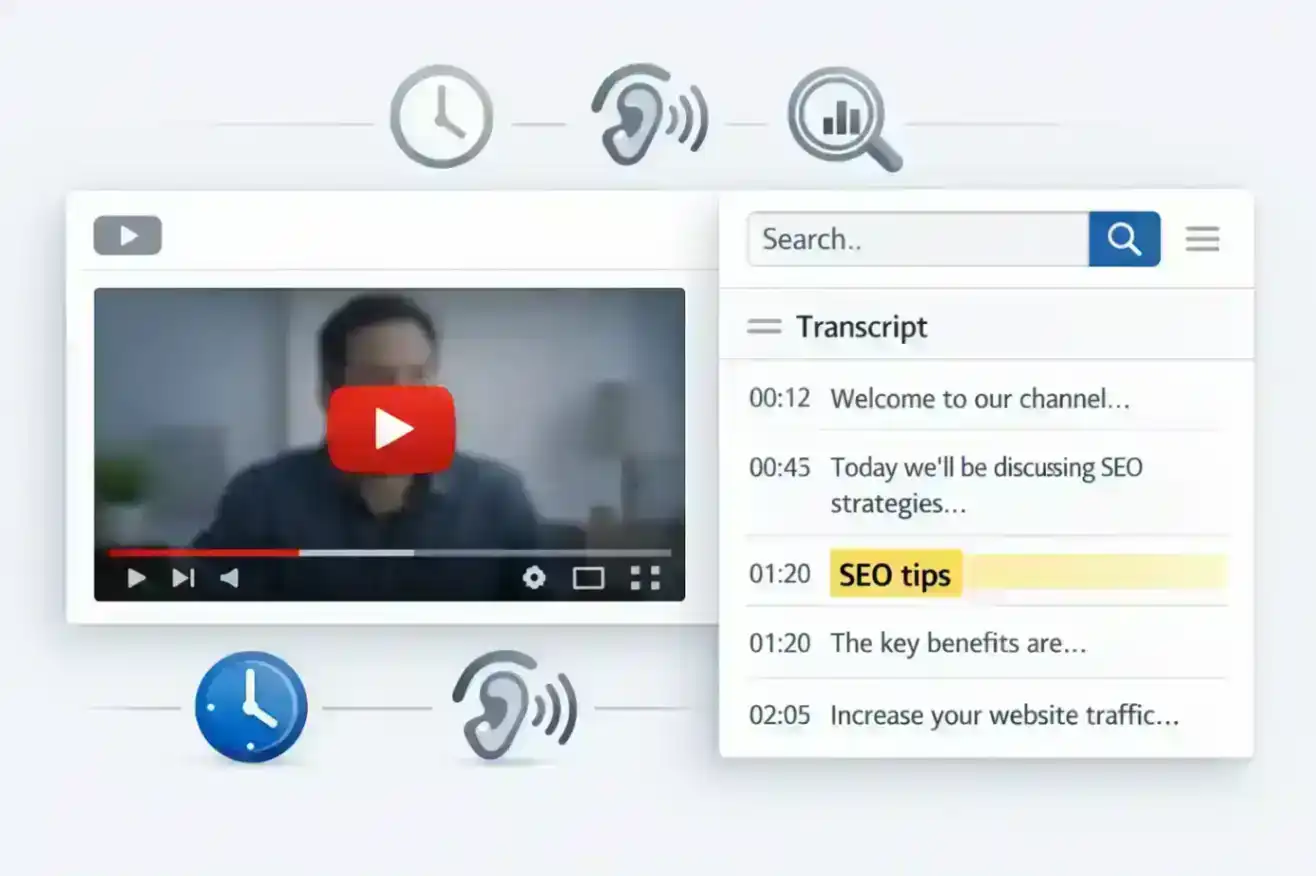
Why Convert YouTube Videos to Text?
Before diving into the methods, let's understand why converting YouTube video to text is so valuable across different use cases.
Save Time and Boost Productivity
A 60-minute video takes 60 minutes to watch. The same content as text? You can read it in 8-10 minutes, skim the key points in 2, and search for any specific topic with Ctrl+F. For busy professionals, that time savings is huge.
Make Content Accessible
Text transcripts make video content accessible to hearing-impaired users, non-native speakers who prefer reading at their own pace, and anyone in a sound-sensitive environment like a library or open office.
Repurpose Video Content for Blogs and SEO
Content creators and marketers can transcribe YouTube video to text and repurpose it into blog posts, social media quotes, email newsletters, and documentation. Google can't index what's said in a video — but it can index a transcript.
Study and Research Made Easier
Students transcribing lectures can highlight key passages, create flashcards, and review material efficiently. Researchers can cite specific quotes from video interviews with timestamps and accurate text.
Method 1 — Use YouTube's Built-in Transcript Feature (Free)
The simplest way to get text from a YouTube video is to use YouTube's own transcript feature. It's free and requires no third-party tools.
How to Access YouTube Transcripts on Desktop
- Open the YouTube video you want to transcribe
- Click the "..." (More) button below the video player
- Select "Show transcript" from the dropdown menu
- Copy the text — click inside the transcript panel, press Ctrl+A to select all, then Ctrl+C to copy
The transcript will appear in a side panel with timestamps. You can toggle timestamps on or off depending on your needs.
How to Access YouTube Transcripts on Mobile
- Tap "...More" in the video description area
- Scroll down and tap "Show transcript"
- Long-press and select the text you want to copy
Note that the mobile experience is less convenient for copying large amounts of text compared to desktop.
Limitations of YouTube's Native Transcript
While this method is free and quick, it has significant drawbacks:
- Accuracy is only 60-70% — YouTube's auto-generated captions get roughly one in three words wrong, especially with accents, technical terms, or multiple speakers
- No punctuation or paragraphs — the output is a wall of text without proper formatting
- No speaker identification — you can't tell who said what in multi-person videos
- Not available for all videos — the creator must have auto-captions or manual subtitles enabled
- No export options — you can only copy-paste; there's no download as TXT, SRT, or PDF
For a quick glance at what a video covers, YouTube's built-in transcript works fine. But for anything requiring accuracy or structure, you'll need a better tool.
Method 2 — Online YouTube to Text Converters
Online converters let you paste a YouTube URL and get a transcript without installing any software. They're the most popular way to convert YouTube video to text for occasional use.
How Online YouTube to Text Converters Work
Most online converters use one of two approaches:
- Subtitle extraction: Pulls the existing auto-generated or manual captions from YouTube. Fast, but limited to YouTube's own (often inaccurate) captions.
- AI transcription: Downloads the audio and runs it through an advanced speech recognition model. Slower, but significantly more accurate.
The better tools use AI transcription and offer additional features like summaries, translations, and export options.
What to Look for in an Online Converter
When comparing online youtube to text converters, pay attention to these key differences:
| Feature | Basic Converters | Advanced AI Tools (e.g., TurboCast) |
|---|---|---|
| Free Tier | Limited or ad-supported | 3 free/day |
| Languages | 10-30 | 50+ |
| Export Formats | TXT only | TXT, SRT, VTT, PDF |
| AI Summary | Rarely | Yes |
| Podcast Generation | No | Yes |
| Accuracy | 70-85% (subtitle extraction) | 95%+ (AI transcription) |
Pros and Cons of Online Converters
Pros:
- No software to install — works in any browser
- Fast results — most transcripts ready in under a minute
- Often free for basic use
Cons:
- Quality varies widely between tools
- Free tiers have usage limits
- Some tools only extract subtitles rather than performing real AI transcription
- Privacy concerns — your video URL is sent to a third-party server
Method 3 — Browser Extensions for YouTube Transcription
If you frequently need transcripts from YouTube, a browser extension can save you clicks by adding transcript functionality directly to the YouTube interface.
Best Chrome Extensions for YouTube Transcripts
Search the Chrome Web Store for "YouTube transcript" and you'll find dozens of options. The most popular extensions typically offer:
- Real-time transcript overlay — see the transcript alongside the video as it plays
- One-click copy and download — export the transcript as TXT with a single click
- AI-powered summaries — some extensions add summarization on top of the transcript
Most extensions work on all Chromium-based browsers including Chrome, Edge, and Brave.
When to Use Extensions vs. Online Tools
Use an extension when:
- You transcribe YouTube videos regularly (weekly or daily)
- You want the transcript visible while watching
- You need real-time transcription for live streams
Use an online tool when:
- You need deeper features like AI summaries, podcast generation, or batch processing
- You want higher accuracy from AI-powered transcription
- You're on a device where you can't install extensions
Method 4 — AI-Powered Transcription Tools
Not all transcription is created equal. There's a big difference between extracting YouTube's existing captions and running actual AI-powered speech recognition on the audio.
How AI Transcription Differs from Subtitle Extraction
| Aspect | Subtitle Extraction | AI Transcription |
|---|---|---|
| Source | YouTube's auto-captions | Raw audio analysis |
| Accuracy | 60-70% | 95%+ |
| Punctuation | Often missing | Properly formatted |
| Speaker ID | No | Yes (most tools) |
| Works without captions | No | Yes |
| Structured output | No | Summaries, chapters, key points |
AI transcription tools process the actual audio signal using state-of-the-art speech recognition models. This means they work even on videos without captions and deliver much higher accuracy.
Key Features to Look for in AI Transcription
When choosing an AI-powered youtube text extractor, look for these capabilities:
- Speaker identification — labels who said what in multi-person content
- Multi-language support — transcribe videos in any language, not just English
- Structured output — chapters, summaries, and key takeaways alongside the full transcript
- Timestamps — click-to-navigate timestamps for easy reference
- Multiple export formats — TXT for plain text, SRT/VTT for subtitles, PDF/DOCX for documents
Method 5 — Convert YouTube to Text with TurboCast (Recommended)
If you want the most complete youtube to text experience — accurate transcription, structured insights, and the unique ability to turn any video into a listenable AI podcast — TurboCast is the tool we recommend.
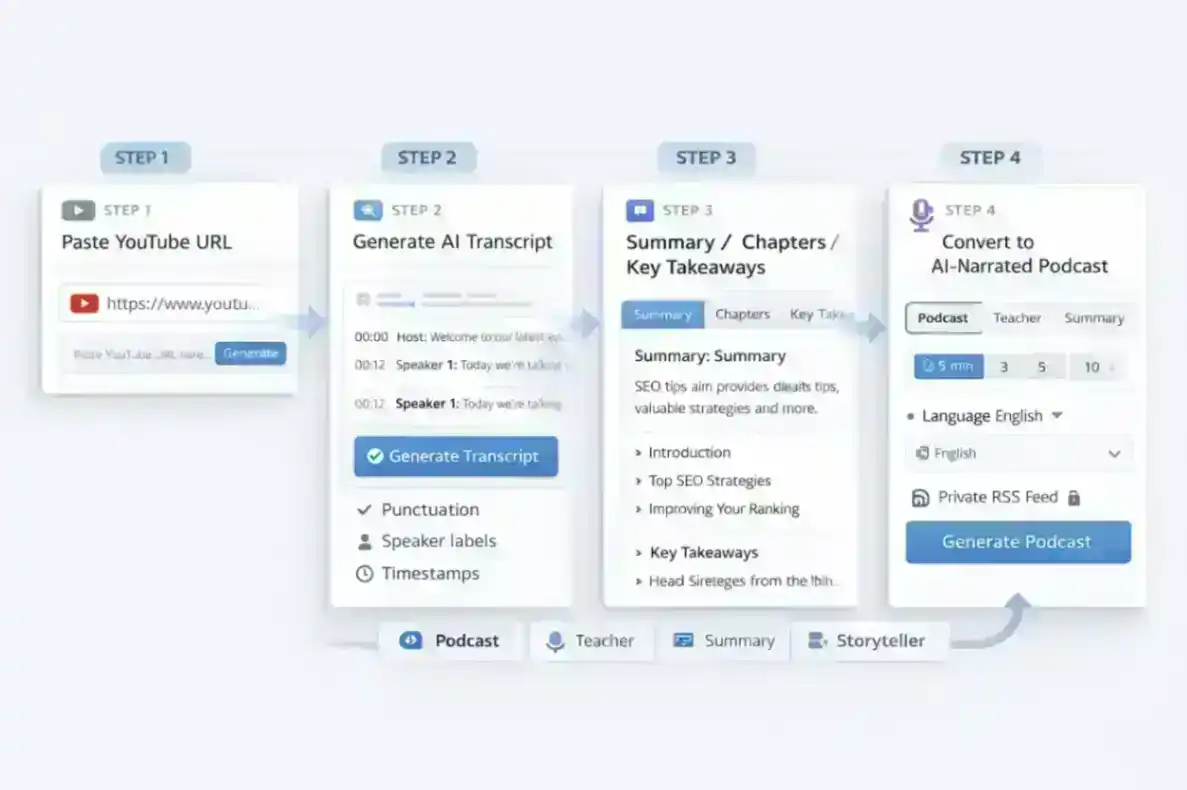
Step 1: Paste Your YouTube URL
Head to TurboCast's YouTube Transcript Generator and paste any YouTube link into the input field. No account required for free transcriptions — you get 3 free conversions per day.
You can also upload video or audio files directly if the content isn't on YouTube.
Step 2: Get AI-Powered Transcription with Structured Insights
TurboCast uses advanced multimodal AI to analyze the audio directly — not just extracting existing subtitles, but actually understanding the content. The result includes:
- Full transcript with proper punctuation and formatting
- Summary — a concise overview of the entire video
- Chapters — automatic section breaks with titles
- Key takeaways — the most important points extracted for quick review
This means you don't just get a wall of text — you get structured, usable content that's ready for note-taking, blogging, or study.
Step 3: Go Beyond Text — Turn It into a Podcast
Here's where TurboCast stands apart from every other youtube video to text converter on the market: you can turn any transcript into an AI-generated podcast episode.
Instead of reading a transcript, you can listen to a new AI-narrated audio explanation that distills the key content into a focused episode. Choose your preferences:
- Style: Podcast (conversational), Teacher (educational), Summary (concise), or Storyteller (narrative)
- Length: 3 minutes, 5 minutes, or 10 minutes
- Language: 50+ languages supported
- Voice: Multiple voice options
This is perfect for commuters who want to absorb a 2-hour lecture during a 10-minute walk, gym-goers who prefer listening over reading, or anyone who learns better by hearing than reading.
You can even add generated podcasts to your private RSS feed and listen in Apple Podcasts, Spotify, or any podcast app.
Why TurboCast Is Different from Other YouTube to Text Tools
Most tools stop at transcription. TurboCast takes it further:
| Feature | Typical Converter | TurboCast |
|---|---|---|
| YouTube URL to transcript | Yes | Yes |
| AI-powered accuracy (95%+) | Some | Yes |
| Structured chapters and summary | Rare | Yes |
| AI explanation audio (Podcast) | No | Yes |
| Multiple styles and lengths | No | Yes |
| Private podcast RSS feed | No | Yes |
| Batch processing (up to 10 files) | Some | Yes |
| Export: TXT, SRT, VTT, PDF | Varies | Yes |
Try TurboCast free — paste a YouTube URL and get your transcript in seconds
Method 6 — Use Google Docs Voice Typing (Manual Method)
If you can't use any third-party tools, Google Docs offers a manual workaround for transcribing YouTube videos.
How to Transcribe YouTube Videos with Google Docs
- Open Google Docs and create a new document
- Go to Tools > Voice typing (or press Ctrl+Shift+S)
- Play the YouTube video through your speakers or headphones
- Click the microphone icon in Google Docs — it will listen and type what it hears
Why This Method Falls Short
While creative, this method has serious limitations:
- Real-time only — a 60-minute video takes 60 minutes to transcribe. No time savings.
- Background noise ruins accuracy — any ambient sound disrupts the transcription
- No timestamps or speaker labels — just raw, unformatted text
- Requires constant babysitting — Voice Typing often stops listening and needs to be restarted
- Single language only — can't handle code-switching or multilingual content
This method is a last resort, not a practical workflow.
Method 7 — Professional Human Transcription Services
For content where accuracy is absolutely critical, professional transcription services use trained human transcribers to produce near-perfect results.
When You Need Human-Level Accuracy
- Legal proceedings — depositions, court recordings, compliance documentation
- Medical content — patient notes, clinical trial recordings
- Published content — books, official reports, broadcast media
- Heavily accented or noisy audio — where even the best AI struggles
Cost and Turnaround Time
Professional transcription typically costs $1-2 per minute of audio, with turnaround times of 24-48 hours. You can find many reputable services by searching for "professional transcription service" — look for providers that offer accuracy guarantees and support your language.
For most everyday use cases (lectures, meetings, content creation), AI-powered tools deliver 95%+ accuracy at a fraction of the cost and time. Human transcription makes sense only when errors are truly unacceptable.
YouTube to Text Methods — Complete Comparison
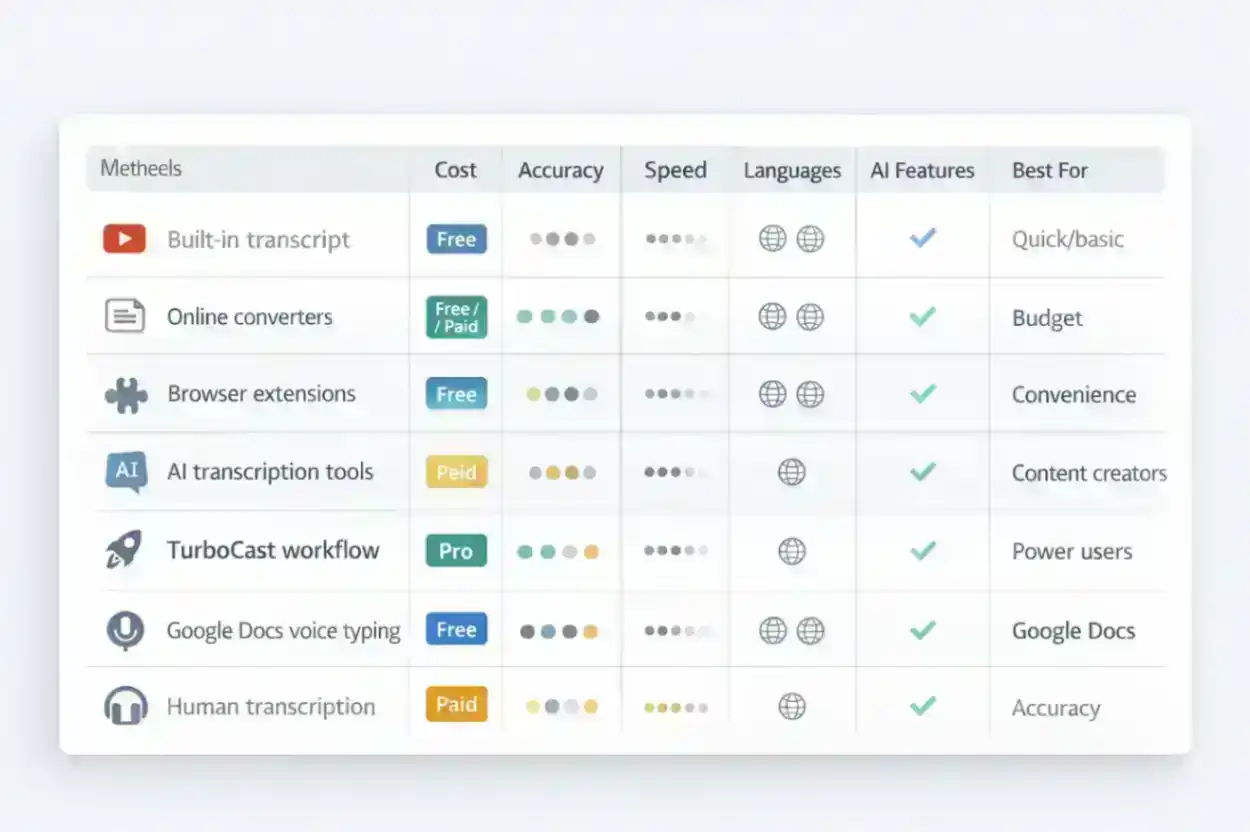
Here's a side-by-side comparison of all 7 methods to help you choose the right approach:
| Method | Cost | Accuracy | Speed | Languages | AI Features | Best For |
|---|---|---|---|---|---|---|
| YouTube Built-in | Free | 60-70% | Instant | Limited | None | Quick glance |
| Online Converters | Free-$$ | 70-95% | Fast | 30-125+ | Some | Occasional use |
| Browser Extensions | Free | 70-85% | Real-time | Varies | Some | Frequent users |
| AI Transcription | Free-$$ | 95%+ | 1-5 min | 50+ | Yes | Quality needs |
| TurboCast | Free-$$ | 95%+ | 1-5 min | 50+ | Full + Podcast | Full workflow |
| Google Docs | Free | 50-70% | Real-time | 1 | None | Last resort |
| Professional | $$$ | 99%+ | 24-48h | Any | N/A | High-stakes |
Our recommendation: For most users, an AI-powered tool like TurboCast offers the best balance of accuracy, speed, features, and cost. The added ability to generate podcast-style audio makes it uniquely versatile.
Best Use Cases for YouTube Video Transcription
Converting YouTube video to text isn't just about getting a transcript — it unlocks entirely new ways to use video content.
Students and Researchers
Transcribe lectures and educational videos into searchable study notes. Highlight key passages, create flashcards from important concepts, and cite specific quotes with timestamps in your papers. Instead of rewatching a 90-minute lecture, search the transcript for exactly what you need.
Content Creators and Bloggers
Turn video interviews, tutorials, and vlogs into written blog posts. Extract compelling quotes for social media captions. Create show notes for podcast episodes. One video can become five pieces of written content with a good transcript.
Marketers and SEO Professionals
Analyze competitor video content by transcribing their YouTube channels. Extract trending keywords and talking points from popular videos in your niche. Add transcripts to your own videos to improve search visibility — Google indexes text, not speech.
Commuters and Busy Professionals
This is where TurboCast's podcast feature truly shines. Instead of reading a long transcript, turn it into a 5-minute AI podcast and listen during your commute, workout, or lunch break. Add it to your private podcast feed and it shows up right in your podcast app alongside your regular subscriptions.
Accessibility and Hearing-Impaired Users
Text transcripts make video content accessible to deaf and hard-of-hearing users. They also help non-native speakers who can read English more easily than they can understand spoken English at full speed. Accessibility isn't just a nice-to-have — in many contexts, it's a legal requirement.
Tips for Getting the Best YouTube Transcription Results
No matter which method you choose, these tips will help you get better results when you convert YouTube video to text.
Choose Videos with Clear Audio
Single-speaker videos with professional recording quality produce the best transcripts. Panel discussions, outdoor recordings, and heavily edited videos with background music tend to reduce accuracy across all tools.
Select the Right Language Setting
Most AI transcription tools auto-detect the language, but manually selecting the correct language improves accuracy. This is especially important for multilingual videos where the speaker switches between languages.
Edit and Proofread AI-Generated Transcripts
Even the best AI transcription tools achieve 95-98% accuracy — not 100%. Always proofread transcripts before publishing or citing them. Pay special attention to proper nouns, technical terms, numbers, and acronyms, which are the most common sources of errors.
Use AI Summaries to Save Even More Time
If you don't need the full word-for-word transcript, use tools that generate summaries and key takeaways. TurboCast's structured output gives you chapters, summaries, and highlights — so you can get the essence of a 2-hour video in under a minute of reading. Or skip reading entirely and generate a podcast to listen to instead.
Frequently Asked Questions
Can I convert any YouTube video to text for free?
Yes, but with limitations. YouTube's built-in transcript is free for most videos that have auto-captions enabled. Tools like TurboCast offer 3 free transcriptions per day with full AI-powered accuracy. For unlimited use, paid plans start at affordable monthly rates. Some completely free tools exist but they typically only extract existing YouTube captions without AI enhancement.
How accurate is YouTube's auto-generated transcript?
YouTube's auto-generated captions are typically 60-70% accurate. That means roughly one in three words may be wrong — especially with accented speech, technical jargon, or multiple speakers. AI-powered transcription tools like TurboCast achieve 95%+ accuracy by analyzing the actual audio with advanced speech recognition models rather than relying on YouTube's captions.
What is the best YouTube to text converter in 2026?
It depends on your needs. For a quick glance, YouTube's built-in transcript works fine. For accurate, structured transcription with summaries and chapters, AI-powered tools are best. For the most complete solution — transcription plus AI podcast generation — TurboCast is the only tool that converts YouTube videos into both text and listenable audio explanations.
Can I transcribe a YouTube video in a different language?
Yes. Most AI transcription tools support 30 to 125+ languages. TurboCast supports 50+ languages for transcription and can generate AI podcast explanations in a different language than the source video. For example, you can transcribe a Japanese lecture and generate an English podcast summary.
How do I convert a YouTube transcript into a podcast?
With TurboCast: paste the YouTube URL, generate the transcript, then click "Generate Podcast." Choose your preferred style (Podcast, Teacher, Summary, or Storyteller), length (3, 5, or 10 minutes), language, and voice. The AI creates a new narrated audio explanation you can download as MP3 or add to your private podcast RSS feed. No other YouTube to text tool offers this feature.
Is it legal to transcribe YouTube videos?
Transcribing YouTube videos for personal use — study notes, research, accessibility — is generally considered fair use. However, redistributing full transcripts of copyrighted content (e.g., publishing a complete transcript of someone's video as your own blog post) may violate copyright and YouTube's Terms of Service. TurboCast generates new AI-created content based on the video rather than copying the original word-for-word, which provides an additional layer of originality.
Conclusion
Converting YouTube to text has evolved far beyond simple copy-paste from auto-captions. In 2026, you have 7 distinct methods available — from YouTube's free built-in transcript to professional human transcription services.
For most people, the sweet spot is an AI-powered tool that delivers accurate transcription with structured insights. And if you want to go a step further, TurboCast is the only tool that lets you turn any YouTube video into a podcast-style audio explanation you can listen to anywhere.
Ready to try it? Convert your first YouTube video to text with TurboCast — 3 free transcriptions per day, no sign-up required.
Looking for audio extraction instead? Check out our guide on how to convert YouTube to MP3.