Let me be upfront about something: most YouTube to MP3 guides on the internet just list five tools, slap some screenshots on them, and call it a day. Half the tools they recommend are riddled with pop-ups, fake download buttons, or stopped working six months ago.
I've spent years extracting audio from YouTube for everything from lecture recordings to long-form podcasts I wanted to listen to on the train. Over that time I've burned through dozens of converters and picked up a few methods that hold up. This guide covers the five approaches I actually use — from the simplest no-install option to the command-line tool that gives you full control.
Whether you're on Windows or Mac, there's a method here that fits your situation.
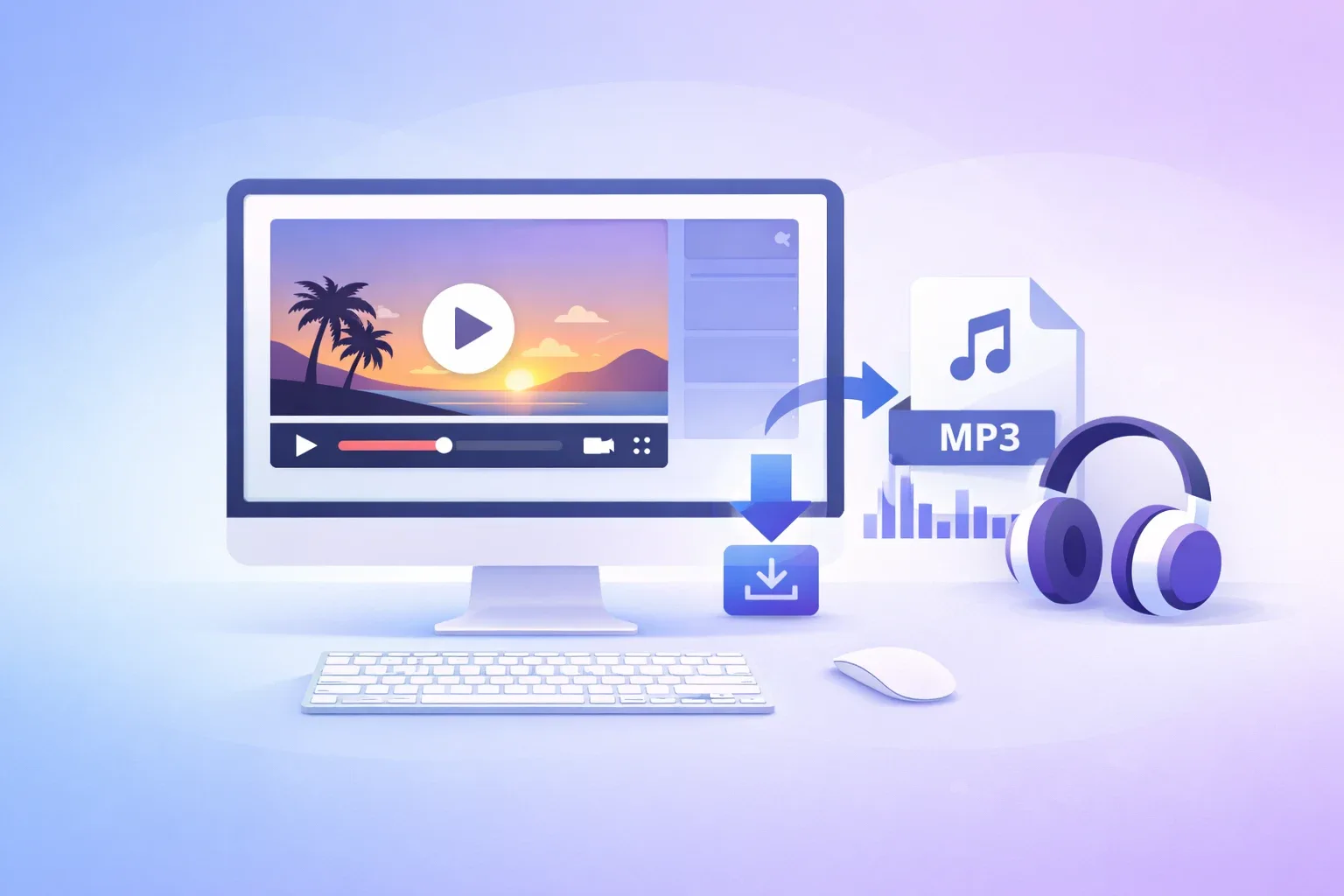
Why Bother Converting YouTube Videos to MP3?
Before diving in, it's worth thinking about why MP3 is the right format for most people.
A 10-minute YouTube video sits at anywhere from 80MB to 300MB depending on quality. The same audio extracted as an MP3 at 128kbps lands at around 10MB. At 320kbps — the highest quality MP3 supports — that same 10 minutes is roughly 24MB. That's a 10–30x reduction in file size, which matters a lot when you're building an offline library or syncing files to a phone.
The other thing is flexibility. Once audio lives on your device as an MP3, it plays in literally every music app, car stereo, podcast player, or gym headset that exists. No app login required, no "this content is unavailable in your region," no buffering on a bad connection.
Common reasons people do this:
- Commuting: Long podcast-style videos or recorded talks that are easier to follow as audio anyway
- Studying: Lectures, language learning content, audiobooks uploaded to YouTube
- Music: Independent artists who only publish to YouTube, live recordings, DJ sets
- Research: Interviews or conference talks you want to listen to on a walk
The 5 Methods at a Glance
Here's an honest comparison before we get into the step-by-step:
| Method | Ease | Quality | Batch / Playlist | Works On | Best For |
|---|---|---|---|---|---|
| Online converter | ⭐⭐⭐⭐⭐ | ⭐⭐⭐ | ❌ | Any browser | Quick one-off downloads |
| yt-dlp (command line) | ⭐⭐ | ⭐⭐⭐⭐⭐ | ✅ | Windows, Mac, Linux | Power users, bulk downloads |
| 4K YouTube to MP3 | ⭐⭐⭐⭐ | ⭐⭐⭐⭐⭐ | ✅ | Windows, Mac | Regular desktop use |
| VLC Media Player | ⭐⭐⭐ | ⭐⭐⭐⭐ | ❌ | Windows, Mac | If you already have VLC |
| AI audio extractor | ⭐⭐⭐⭐⭐ | ⭐⭐⭐⭐⭐ | ✅ | Any browser | Audio + transcript + summary |
Method 1: Use an Online Converter (No Installation Required)
Online converters are the fastest option if you just need one file right now and don't want to install anything. The trade-off is that many of them are aggressive with ads, and videos longer than 30–40 minutes frequently time out mid-conversion.
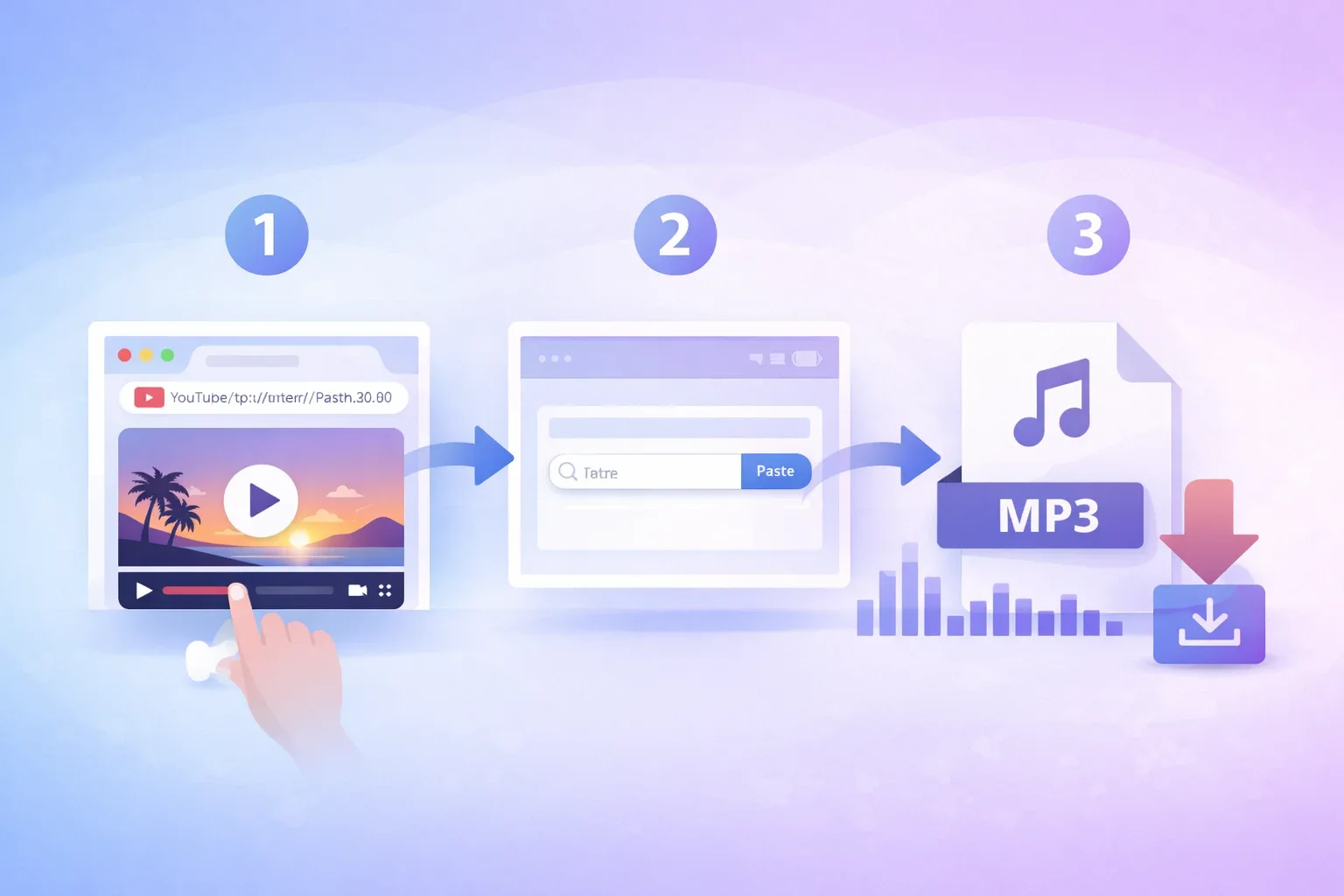
The process is always the same across sites:
- Go to YouTube and open the video you want
- Copy the URL from your browser's address bar (
Ctrl+Con Windows,Cmd+Con Mac) - Go to the converter site, paste the URL into the input box
- Select MP3 as your output format and choose your bitrate (go for 192kbps or higher)
- Hit Convert, wait for processing, then download the file
What to watch out for:
The biggest annoyance with free online converters isn't the ads — it's the fake download buttons. On most of these sites, the real download button is a small, plain text link. The big colorful "DOWNLOAD" buttons scattered around the page are ads that lead somewhere else. Take a second to scan the page before clicking anything.
Also: if you're trying to grab a 2-hour lecture or a full concert recording, don't bother with online tools. They almost always fail on long files. For anything over 45 minutes, jump to Method 2 or Method 3 instead.
My honest take: Fine for occasional use. If you find yourself doing this more than once a week, it gets annoying fast. The better investment is five minutes setting up one of the desktop options below.
Method 2: Use yt-dlp (Free, Open Source, Unlimited)
yt-dlp is a free command-line tool that downloads from YouTube and hundreds of other sites. It's the backbone of most serious YouTube downloading workflows because it has no limits, handles playlists natively, and maintains the highest possible audio quality.
The command line sounds intimidating, but for this use case you only need two or three commands. Once it's set up, downloading an MP3 is a single line.
Installing yt-dlp on Windows
Step 1: Download yt-dlp
Go to the yt-dlp GitHub releases page and download yt-dlp.exe. Create a folder at C:\yt-dlp\ and put the file there.
Step 2: Install FFmpeg
yt-dlp needs FFmpeg to convert audio formats. Download the Windows build from ffmpeg.org, extract it, and copy the ffmpeg.exe and ffprobe.exe files into the same C:\yt-dlp\ folder.
Step 3: Add to PATH
Search for "Environment Variables" in the Start menu → click "Edit the system environment variables" → click "Environment Variables" → find "Path" under System variables → click Edit → Add New → type C:\yt-dlp → OK all the way through.
Step 4: Verify
Open a new Command Prompt window and run:
yt-dlp --versionIf you see a version number, you're good to go.
Installing yt-dlp on Mac
The easiest way is through Homebrew. If you don't have Homebrew yet:
/bin/bash -c "$(curl -fsSL https://raw.githubusercontent.com/Homebrew/install/HEAD/install.sh)"Then install both yt-dlp and ffmpeg:
brew install yt-dlp ffmpegDone. Both tools are now on your PATH automatically.
Basic Commands
Download a single video as MP3 (best quality):
yt-dlp -x --audio-format mp3 --audio-quality 0 "https://www.youtube.com/watch?v=VIDEO_ID"The -x flag extracts audio only. --audio-quality 0 means the highest possible quality (the scale runs 0–10, where 0 is best). Always wrap the URL in quotes — YouTube URLs contain special characters that can break the command otherwise.
Download at a specific bitrate (e.g., 192kbps):
yt-dlp -x --audio-format mp3 --audio-quality 5 "URL"Download an entire playlist as MP3:
yt-dlp -x --audio-format mp3 --audio-quality 0 "https://www.youtube.com/playlist?list=PLAYLIST_ID"Speed up large batch downloads with parallel connections:
yt-dlp -N 4 -x --audio-format mp3 "URL"Avoid re-downloading files you've already grabbed:
yt-dlp --download-archive archive.txt -x --audio-format mp3 "playlist_URL"This creates a text file that tracks everything you've downloaded. Run the same command again and it skips anything already in the archive.
Keep yt-dlp updated (YouTube occasionally changes things and older versions break):
yt-dlp -UMy honest take: This is my personal go-to for anything that involves more than a handful of files. The setup takes maybe 10 minutes once, and after that it's faster and more reliable than any GUI tool. If you're comfortable opening a terminal, start here.
Method 3: Use 4K YouTube to MP3 (Best Desktop App)
If the command line isn't your thing, 4K YouTube to MP3 is the best GUI desktop application for this job. It's available for Windows, Mac, and Linux, handles playlists and channels, and tops out at 320kbps MP3 quality.
How to use it
Step 1: Download and install 4K YouTube to MP3 from the official site. The free version handles individual videos and basic playlists without a watermark or quality cap.
Step 2: Open the app, copy a YouTube URL, and paste it directly into the app. You can use the "Paste Link" button or just Ctrl+V / Cmd+V — the app detects the clipboard automatically.
Step 3: A popup appears asking what to download. Choose your preferred quality: Best Quality (preserves original bitrate), High (256kbps), Medium (192kbps), or Low (128kbps).
Step 4: For a playlist, the app will ask whether you want just the single video or the entire playlist. Choose playlist to queue everything up at once.
Step 5: Click Download. Files save to your chosen output folder.
Free vs. paid
The free tier is enough for most personal use. The paid "Restream" license ($15/year) unlocks simultaneous downloads, subtitle extraction, and removes the occasional "you've hit the daily limit" message that appears if you're downloading large playlists.
My honest take: The cleanest option if you want a proper desktop app with a real interface. Slightly slower than yt-dlp for large batches, but the tradeoff is zero terminal knowledge required.
Method 4: Use VLC Media Player (The Hidden Trick)
Most people have VLC installed and don't realize it can extract audio from YouTube. It's not the most convenient method, but if you're on a work machine where you can't install new software and you already have VLC, this works.
Step-by-step on Windows and Mac
Step 1: Open VLC. Go to Media > Open Network Stream (Windows) or File > Open Network (Mac).
Step 2: Paste the YouTube video URL into the URL field and click Play.
Step 3: Now go to Tools > Codec Information (Windows) or Window > Media Information (Mac). In the "Location" field at the bottom, you'll see a long CDN URL — copy this entire URL.
Step 4: Go to Media > Convert/Save (Windows) or File > Convert/Stream (Mac). Paste the CDN URL into the new URL field, then click Convert/Save.
Step 5: Under Profile, choose Audio - MP3. Set your output file destination and click Start.
VLC will download and convert the stream to an MP3. It's slower than the other methods because it's essentially streaming the video and re-encoding the audio in real time, but it works reliably.
A fair warning: VLC's YouTube support occasionally breaks when YouTube updates its streaming URLs. If it stops working, update VLC to the latest version first.
My honest take: Useful in a pinch. Not something I'd use regularly — too many steps compared to the other options. But the fact that it works in VLC, which is already on most computers, is genuinely handy.
Method 5: Use an AI-Powered Extractor (Audio + Transcript + Summary)
The previous four methods all give you the same thing: a raw audio file. If you're extracting audio because you want to actually understand or use the content — not just listen to it — there's a better option.
TurboCast's YouTube to MP3 tool extracts the audio from any YouTube video, but it also runs AI analysis on the content at the same time. You get:
- The MP3 file for offline listening
- A full text transcript with timestamps
- An AI-generated summary and key points
- Optionally, a podcast-style audio explanation of the content
This is genuinely useful for long conference talks, technical lectures, interviews, and anything where you'd otherwise be scrubbing back and forth to find specific quotes.
How to use it
Step 1: Go to TurboCast's YouTube to MP3 converter.
Step 2: Paste your YouTube URL into the input field.
Step 3: Click Convert. The tool processes the video and returns your MP3 plus a full transcript.
Step 4: Download the MP3 directly from the results page. If you want the transcript too, you can copy it or export it as a text file.
Free accounts get 3 extractions per day. Paid plans remove that limit and unlock the AI podcast and summary features.
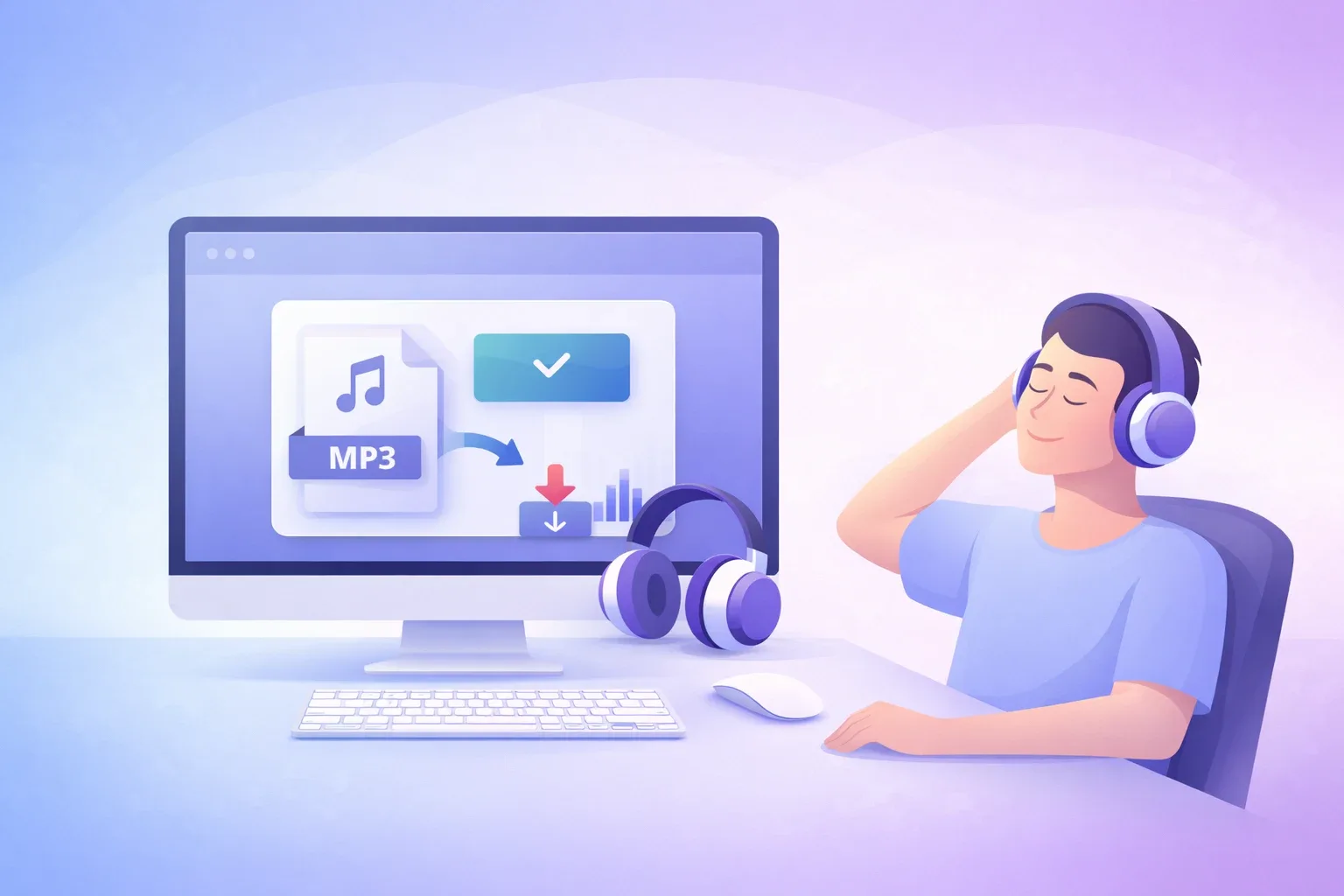
My honest take: For pure audio extraction, yt-dlp or 4K YouTube to MP3 are faster and have no daily limits. But if you need the content of a video — not just the audio — this is the only tool that actually gives you that in one step.
Which Method Should You Use?
Here's a quick decision guide based on what you're actually trying to do:
"I just need one file, right now, no setup" → Method 1 (online converter) or Method 5 (TurboCast, also gives you a transcript)
"I download YouTube audio regularly and want the best quality with no limits" → Method 2 (yt-dlp) — worth the 10-minute setup, pays off immediately
"I want a desktop app with a proper GUI" → Method 3 (4K YouTube to MP3)
"I already have VLC and don't want to install anything new" → Method 4 (VLC hidden trick)
"I need the content of the video, not just the audio" → Method 5 (TurboCast) — transcript + AI summary + MP3 in one step
How to Batch Download a YouTube Playlist to MP3
Downloading a full playlist is one of the most common requests, and most online converters either don't support it or cap it at 20 tracks. Here are three approaches that handle full playlists properly.
Option A: yt-dlp (recommended for large playlists)
yt-dlp -x --audio-format mp3 --audio-quality 0 "https://www.youtube.com/playlist?list=YOUR_PLAYLIST_ID"All tracks download into the current folder, named automatically. To add a track number prefix to filenames (useful for keeping albums in order):
yt-dlp -x --audio-format mp3 -o "%(playlist_index)s - %(title)s.%(ext)s" "PLAYLIST_URL"Use --download-archive archive.txt if you're syncing a playlist over time and want to skip tracks you've already downloaded.
Option B: 4K YouTube to MP3 (GUI approach)
Paste the playlist URL into the app. When the download popup appears, you'll see a "Download all" or list icon option. Click it to queue the entire playlist. You can monitor individual track progress from the main window.
The free version limits simultaneous downloads to one at a time, which is slower for large playlists. The paid version runs multiple downloads in parallel.
Option C: MediaHuman YouTube to MP3 Converter
MediaHuman is a free desktop app that handles playlists well and integrates directly with iTunes and Apple Music — useful if you're on Mac and want newly downloaded tracks to appear in your library automatically.
Paste the playlist URL, click the list icon to expand to the full playlist, then Start All. It runs downloads in the background, so you can keep adding more playlists while it works.
A note on large playlists: Playlists with more than 200 videos can take a while regardless of tool. For a 500-track music archive, expect 30–60 minutes even on a fast connection. yt-dlp with -N 4 (4 parallel connections) is the fastest approach.
MP3 Audio Quality: What the Numbers Actually Mean
Most tools give you quality options and it's not always obvious what to choose. Here's the short version:
| Bitrate | File Size (per minute) | Use Case |
|---|---|---|
| 128kbps | ~1 MB | Voice, podcasts, audiobooks — fine for speech |
| 192kbps | ~1.5 MB | General music listening, good balance |
| 256kbps | ~1.9 MB | High-quality music, audiophile casual listening |
| 320kbps | ~2.4 MB | Maximum MP3 quality — the format's ceiling |
A few things worth knowing:
320kbps is the highest MP3 supports. Some tools advertise "ultra HD" or "lossless" MP3 — that's not a real thing. If you want true lossless, the format is FLAC or M4A, not MP3.
YouTube's source audio is usually 128–160kbps AAC. This means downloading at 320kbps MP3 doesn't actually give you better audio than 192kbps — you're just increasing file size without quality gain. For music, 192kbps is a sensible ceiling. For speech, 128kbps is genuinely indistinguishable.
Don't choose "best quality" blindly. For a podcast you're listening to on earbuds during a run, 128kbps is identical to 320kbps in practice. Save the higher bitrates for music you care about.
Is It Legal to Download YouTube to MP3?
The short answer: it depends on what you're downloading and what you're doing with it.
YouTube's Terms of Service prohibit downloading content unless YouTube itself provides a download button. At the same time, copyright law in most countries includes personal use exceptions that are not well-tested in court for this specific scenario.
The practical reality most people operate by:
- ✅ Downloading a lecture, talk, or podcast for personal offline listening — generally considered acceptable personal use in most jurisdictions
- ✅ Content explicitly licensed under Creative Commons — explicitly allowed, often for any use
- ❌ Downloading commercial music to avoid paying for it — clearly a copyright violation
- ❌ Redistributing or selling downloaded content — clearly illegal
If you want the full picture on the legal side — including what YouTube's ToS actually says, the DMCA anti-circumvention issue most people don't know about, and what the real enforcement risk is for individuals — see our dedicated legal breakdown: Is It Legal to Convert YouTube to MP3? The Honest Answer.
The safest route for music: use YouTube Premium's official offline feature, or purchase from a legitimate store. For everything else — lectures, talks, personal recordings you uploaded yourself, Creative Commons content — the tools above are what people use.
Frequently Asked Questions
Is there a YouTube to MP3 converter that actually works consistently?
For web-based tools, most of them work but have reliability issues with longer videos. The most consistent options are desktop tools: yt-dlp never fails on a valid YouTube URL, and 4K YouTube to MP3 has a strong track record. Online-only converters go down periodically because YouTube updates its systems.
How do I download MP3 from YouTube without installing any software?
Use an online converter (Method 1) or TurboCast's web tool (Method 5). Both run entirely in the browser. TurboCast has the advantage of also giving you a transcript if you need the content, not just the audio.
What's the best audio quality I can get?
320kbps is the maximum MP3 bitrate, but keep in mind that YouTube's original audio is often 128–160kbps AAC. Downloading at 320kbps doesn't improve on that source — it just transcodes without quality gain. For music, 192kbps is the sweet spot. For speech, 128kbps is plenty.
Can I download an entire YouTube playlist as MP3?
Yes. yt-dlp handles any size playlist natively with one command. 4K YouTube to MP3 does the same through a GUI. MediaHuman is another free desktop option with good playlist support. Online converters generally don't support bulk playlist downloads — use a desktop tool for this.
Is yt-dlp safe to use?
Yes. yt-dlp is an open-source project with its source code publicly available on GitHub. It installs no background processes, sends no data to third parties, and doesn't modify your system beyond the folders you specify. The only thing to watch is that you download it from the official GitHub releases page, not a third-party mirror.
How do I convert YouTube to MP3 on a Mac?
All five methods work on Mac. For the quickest setup, yt-dlp via Homebrew (brew install yt-dlp ffmpeg) is the most powerful option. 4K YouTube to MP3 and MediaHuman both have native Mac apps. Online converters work on any browser.
Why do online YouTube to MP3 converters keep breaking?
YouTube periodically changes how it serves video streams, and converter sites that don't keep up with those changes break. This is also why the same converter might work one day and not the next. Desktop tools like yt-dlp update frequently to stay current with YouTube's changes — running yt-dlp -U keeps it working.
How long does it take to download a YouTube video as MP3?
A 10-minute video typically converts and downloads in 20–60 seconds depending on your internet speed and the tool. Online converters have the overhead of a remote server doing the work. yt-dlp running locally on a decent connection is usually the fastest.
Can I download YouTube Music to MP3?
YouTube Music content can be downloaded with yt-dlp using the same commands — it treats YouTube Music URLs the same as regular YouTube. Note that YouTube Music's terms of service prohibit this, and if you're paying for YouTube Music, using the in-app download feature is both legal and convenient.
What's the difference between MP3 and M4A?
Both are compressed audio formats. MP3 has been around since the 1990s and plays everywhere. M4A (the format YouTube actually uses for its audio streams) offers slightly better quality at the same bitrate but has minor compatibility issues with older devices and software. For maximum compatibility, convert to MP3. If you only need to play files on modern devices, M4A at the same bitrate is technically superior.
Wrapping Up
The right method depends on how often you do this and what you need from the file.
If this is a one-time thing, the online converter or TurboCast get you there in under a minute. If you download YouTube audio regularly, spending 10 minutes setting up yt-dlp will pay for itself after the third use. And if you need more than just the audio — if you want to read, search, or summarize the content — TurboCast's AI extractor is the only tool that gives you everything in one shot.
For a broader look at all the ways to convert YouTube to MP3, including the legal and safety considerations in more depth, see our complete YouTube to MP3 guide.