TurboCastTurboCast

AI Video Generator

Turn a prompt or a photo into a cinematic clip with sound, using the best AI model for every shot.

  • Powered by Veo 3.1 & Kling 3.0
  • Animate any image you made here
  • One plan for video, image & audio
  • Failed clips auto-refunded
0 / 2,000

Try with one of these

What Is the TurboCast AI Video Generator?

The TurboCast AI video generator turns a text prompt or a photo into a short clip with sound. It runs 8 models from Google, Kling, ByteDance, MiniMax, Alibaba and xAI, with clips from 2 to 30 seconds and up to 4K.

8 AI video models from 6 labs, all with native sound

8

AI video models from 6 labs, all with native sound

2–30 s clip length, set to the second

2–30 s

clip length, set to the second

5+ credits per clip, refunded if it fails

5+

credits per clip, refunded if it fails

How to Make an AI Video in 4 Steps

The AI video generator takes you from an idea to a finished clip in a few minutes. No editing software and no film crew needed.

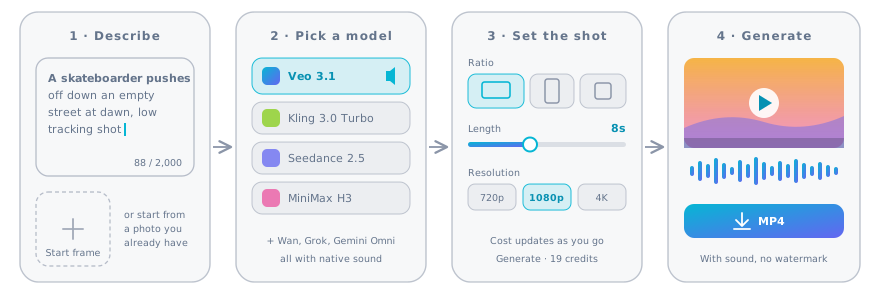
Four steps in the AI video generator: describe the shot or add a photo, pick a model, set ratio and length, then generate and download
  1. 1.Describe the shot or add a photo

    Write who or what is on screen, one action and where it happens. Or add a start frame and describe how it should move. Keep AI Enhance on to fill in the camera, light and sound.

    Pro tip

    One shot, one action. A 5 to 8 second clip has room for a single clear movement, not a whole story.

  2. 2.Pick a model for the shot

    Veo 3.1 is the default and the most cinematic. Kling 3.0 Turbo is strongest with people, MiniMax H3 with animals and nature, and Grok Imagine is the fastest and cheapest.

    Pro tip

    Test an idea on Seedance 2.0 Mini or Grok Imagine for a few credits, then rerun the winner on Veo 3.1.

  3. 3.Set the ratio, length and resolution

    Pick 16:9 for YouTube or 9:16 for Shorts, Reels and TikTok. Set the length to the second and the resolution up to 4K. The credit cost on the Generate button updates as you go.

    Pro tip

    Veo 3.1 charges the same for 4, 6 and 8 seconds, so 8 seconds is the best value.

  4. 4.Generate and download

    Most clips are ready in 1 to 5 minutes. Download an MP4 with sound and no watermark, or reuse the prompt for another take.

    Pro tip

    You can close the tab. The AI video generator keeps working and saves the clip to your history. If it fails, the credits come back.

AI Video Generator With Sound

Every model in this AI video generator makes sound along with the picture: ambience, effects and, on models like Veo 3.1, spoken lines. No silent clips to fix later.

Sound on every model

Veo 3.1, Kling 3.0 Turbo, MiniMax H3, Grok Imagine and Gemini Omni always add a soundtrack. Seedance and Wan add one by default.

Describe what you want to hear

Name the sounds in your prompt, like "rain on the window, distant thunder", and the AI video generator mixes them in. Put a spoken line in quotes to ask for dialogue.

Turn it off for your own music

Adding your own track or voiceover? Switch sound off on Seedance and Wan, or mute the clip in your editor.

Start frame: a lamp-lit reading nook on a snowy night, a person reading under a blanket with a cat asleep beside them

Start frame

Video · MiniMax H3

Prompt: The cat wakes up, stretches and hops down from the window seat
Start frame: the same reading nook by day, with rain falling on the stone cottages outside

Start frame

Video · Seedance 2.5

Prompt: Day turns into night in the reading nook: the light outside fades, rain turns to snow, the lamp glows brighter

Turn a Photo Into a Video With Start and End Frames

Image to video starts from a picture you already have. The model keeps its look and adds only the motion you describe.

Start from one frame

Upload a photo and describe the motion: what moves, how the camera travels and what you hear. Describe the change, not the picture you already gave it.

Set the first and last frame

Veo 3.1, Seedance, MiniMax H3, Wan and Gemini Omni also take an end frame. The model fills in the motion between the two, which makes clean transitions and before-and-after shots.

Animate images you made here

Every image has an Animate button that opens it here as the start frame. Use reference images instead to keep a character or product consistent across clips.

Create the first frame with the AI image generator

Which AI Video Model Should You Use?

Each model in this AI video generator has a sweet spot. Compare them in the table, then read the cards to see when each one shines.

All 8 models at a glance

ModelBest forCreditsLengthMax resolutionImage inputSound
Veo 3.1Cinematic shots with dialogue9–1034–8 s4KStart and end frame · up to 3 referencesAlways on
Kling 3.0 TurboPeople, faces and movement16–943–15 s1080pStart frameAlways on
Seedance 2.5Camera moves and long shots32–13184–30 s1080pStart and end frame · up to 30 referencesOn or off
Seedance 2.0 MiniCheap drafts and tests5–354–15 s720pStart and end frame · up to 9 referencesOn or off
MiniMax H3Animals and nature9–554–15 s2KStart and end frame · up to 9 referencesAlways on
Wan 3.0Longer clips on a budget5–2672–30 s1080pStart and end frame · up to 10 referencesOn or off
Grok ImagineFast, playful clips5–676–30 s1080pStart frame · up to 7 referencesAlways on
Gemini Omni FlashMultimodal and reference-led clips18–594–10 s4KStart and end frame · up to 7 referencesAlways on

Credits are per clip and depend on resolution and length. The Generate button always shows the exact price first.

Veo 3.1

Google

Google's flagship video model and our default. It has the most film-like light and motion, and it speaks lines you put in quotes. Lite, Fast and Quality trade price for polish.

Best for

Cinematic shots with dialogue

Limits

  • 4–8 s
  • 2 aspect ratios
  • Start and end frame
  • up to 3 references

Credits

720p1080p4K
Lite91042
Fast171951
Quality7071103

Same price for 4, 6 or 8 seconds.

Kling 3.0 Turbo

Kling

Kling's fast model keeps bodies and expressions natural through motion, from sports to dance. It works from text or a start frame and always adds sound.

Sample clip made with Kling 3.0 Turbo (from AnyScene).

Best for

People, faces and movement

Limits

  • 3–15 s
  • 3 aspect ratios
  • Start frame
  • No reference images

Credits

720p1080p
3 s1619
5 s2632
15 s7694

Seedance 2.5

ByteDance

ByteDance's newest model follows camera directions closely and holds detail for up to 30 seconds. It is the priciest per second at 720p and above, so test at 480p first.

Sample clip made with Seedance 2.5 (from AnyScene).

Best for

Camera moves and long shots

Limits

  • 4–30 s
  • 6 aspect ratios
  • Start and end frame
  • up to 30 references

Credits

480p720p1080p
4 s3271176
5 s3988220
30 s2345261318

Seedance 2.0 Mini

ByteDance

The smallest Seedance model costs about 1 credit per second at 480p. Use it to check an idea before you spend more on a bigger model.

Best for

Cheap drafts and tests

Limits

  • 4–15 s
  • 6 aspect ratios
  • Start and end frame
  • up to 9 references

Credits

480p720p
4 s510
5 s612
15 s1635

MiniMax H3

MiniMax

MiniMax's model renders fur, water and natural motion with stereo sound. It takes start and end frames or up to 9 reference images.

Sample clip made with MiniMax H3 (from AnyScene).

Best for

Animals and nature

Limits

  • 4–15 s
  • 6 aspect ratios
  • Start and end frame
  • up to 9 references

Credits

768p2K
4 s915
6 s1422
15 s3455

Wan 3.0

Alibaba

Alibaba's model makes clips from 2 to 30 seconds at a fair per-second price, with sound you can switch off.

Best for

Longer clips on a budget

Limits

  • 2–30 s
  • 5 aspect ratios
  • Start and end frame
  • up to 10 references

Credits

480p720p1080p
2 s5918
5 s122345
30 s67134267

Grok Imagine

xAI

xAI's model is the quickest here and starts at 5 credits. Normal mode keeps things grounded, Fun mode goes wilder.

Best for

Fast, playful clips

Limits

  • 6–30 s
  • 5 aspect ratios
  • Start frame
  • up to 7 references

Credits

480p720p1080p
6 s5814
30 s213867

Gemini Omni Flash

Google

Google's newest multimodal model takes up to 7 reference images. 360p, 720p and 1080p cost the same, so pick 1080p.

Best for

Multimodal and reference-led clips

Limits

  • 4–10 s
  • 2 aspect ratios
  • Start and end frame
  • up to 7 references

Credits

360p720p1080p4K
4 s18181841
6 s24242447
10 s36363659

Camera Moves the AI Video Generator Understands

Naming the camera move is the fastest way to make a clip look directed. Pick one from the Camera menu or write the phrase yourself.

Static shot

The camera stays still and the subject moves. Best for product shots and talking moments.

Added to the prompt

Locked-off static camera, no camera movement.

Push in

The camera moves slowly toward the subject to build focus or tension.

Added to the prompt

Slow dolly push-in toward the subject.

Pull out

The camera backs away to reveal where the subject is. A strong ending shot.

Added to the prompt

Slow dolly pull-out that reveals the surroundings.

Pan

The camera turns sideways across the scene, like a head turning to look.

Added to the prompt

Smooth horizontal pan from left to right.

Tilt up

The camera tilts from the ground up to the subject for a dramatic reveal.

Added to the prompt

Slow tilt up from the ground to the subject.

Orbit

The camera circles the subject. It shows products and characters from more than one side.

Added to the prompt

The camera orbits halfway around the subject.

Crane up

The camera rises above the scene for an epic establishing shot.

Added to the prompt

Crane shot rising up and over the scene.

Tracking shot

The camera moves with the subject, keeping it in frame as the world passes by.

Added to the prompt

Tracking shot that follows the subject at the same pace.

Handheld

A light, natural shake that feels like phone or documentary footage.

Added to the prompt

Handheld camera with a natural, slight shake.

Drone shot

The camera flies forward over the landscape, high above the ground.

Added to the prompt

Aerial drone shot flying forward over the scene.

Pick the Right Aspect Ratio and Length

Set the shape before you generate. A clip made for the right screen never needs cropping, so faces and titles stay in frame.

16:9 for YouTube and websites

The standard for YouTube, presentations and website headers. Use 21:9 on Seedance or MiniMax for a cinema look.

9:16 for Shorts, Reels and TikTok

Vertical video fills the phone screen. Set 9:16 in the AI video generator first, keep clips to 6 to 15 seconds and put the action in the first second.

1:1 and 3:4 for feeds

Square and slightly tall clips work in feeds and ads. Kling, Seedance, MiniMax, Wan and Grok make 1:1 natively.

What You Can Make With an AI Video Generator

Six jobs creators hand to an AI video generator every week, with the model and shape we would start with.

Shorts, Reels and TikTok

Make a scroll-stopping vertical clip in minutes. Open with the punchline, and keep it to one idea. It also works as a teaser for a new podcast episode.

Best model

Grok Imagine

Best ratio

9:16

Product ads

Spin a product in a splash of water or on a clean pedestal. Start from a real product photo so its shape and label stay right.

Best model

Veo 3.1

Best ratio

9:16

Food and restaurant clips

Cheese pulls, pours and sizzling pans sell food. Ask for a close-up, warm light and slow motion.

Best model

Veo 3.1

Best ratio

16:9

Fashion and lifestyle

Show an outfit in motion on a city street or a runway. A tracking shot from behind keeps the look in focus.

Best model

Kling 3.0 Turbo

Best ratio

9:16

Cinematic B-roll

An AI video generator fills a video essay or a trailer with wide, moody establishing shots. Use 21:9 and a slow camera move.

Best model

Seedance 2.5

Best ratio

21:9

Characters and animation

Bring a 3D or anime character to life for a story, a mascot or a kids' channel. Reuse the same reference images to keep the character consistent.

Best model

Seedance 2.5

Best ratio

3:4

How to Write a Prompt for an AI Video Generator

A strong video prompt reads like a one-line shot list. Cover six parts and most clips land on the first take.

Subject and one action

Say who or what is on screen and the single thing they do. "A golden retriever shakes off water" beats "a happy dog video".

Camera, scene and light

Add the camera move, the place and the light, such as "low tracking shot, empty street, soft dawn light".

Sound

End with what you should hear, like "wheels rolling on asphalt, distant traffic". Quote any line of dialogue.

5 AI Video Prompt Mistakes to Avoid

Most weak clips from an AI video generator trace back to one of these.

A dog that surfs, juggles and dances in 5 seconds turns to mush. Give each clip one action and cut several clips together.

TurboCast vs Single-Model Video Generators

Most video apps are built around one model or hide which one you get. Here is what changes when the AI video generator lets you pick the model for every clip.

What you getSingle-model video appsTurboCast AI Video Generator
ModelsOne in-house model, or a menu that differs from the page8 models from Google, Kling, ByteDance, MiniMax, Alibaba and xAI
Price before you clickOften unclear until the credits are goneExact credits on the Generate button
Start from your own imagesUpload onlyUpload, or animate any image you made in TurboCast
SoundOften an add-on or a separate stepNative sound on every model
Clips that failOften still count against your quotaRefunded automatically
Images and audio tooA separate subscription for eachOne plan for video, images and audio

How Credits Work in the AI Video Generator

Each clip costs credits based on the model, the resolution and the length. Grok Imagine starts at 5 credits, Veo 3.1 Fast costs 17 at 720p, and the most detailed settings cost more. The exact total shows on the Generate button before you click.

Veo 3.1 and Gemini Omni charge per clip, so a longer clip costs no more. The other models charge per second, so a 10-second clip costs about twice a 5-second one.

Credits come from your TurboCast plan and are shared with images, text to speech and voice cloning. Starter includes 300 credits a month. That covers 17 eight-second Veo 3.1 Fast clips, or 37 six-second clips on Grok Imagine at 720p.

Credits are reserved when a clip starts. If it fails or the model refuses the prompt, every credit returns to your balance automatically.

The AI video generator is part of every paid plan rather than a free tool. That keeps the queue short, files watermark-free and commercial use included.

Commercial Use, Likeness and Safety

The short version of what you can do with clips from the AI video generator, and what we don't make.

Yes. Clips you create with the AI video generator on a paid plan can be used in ads, social posts, products and client work. Avoid prompts that copy trademarks, logos or a film's characters.

AI Video Generator FAQ

Quick answers about models, credits, sound and rights.


Create Your First AI Video

Pick a model in the AI video generator, describe the shot and get a clip with sound in a few minutes. Included in every paid plan.