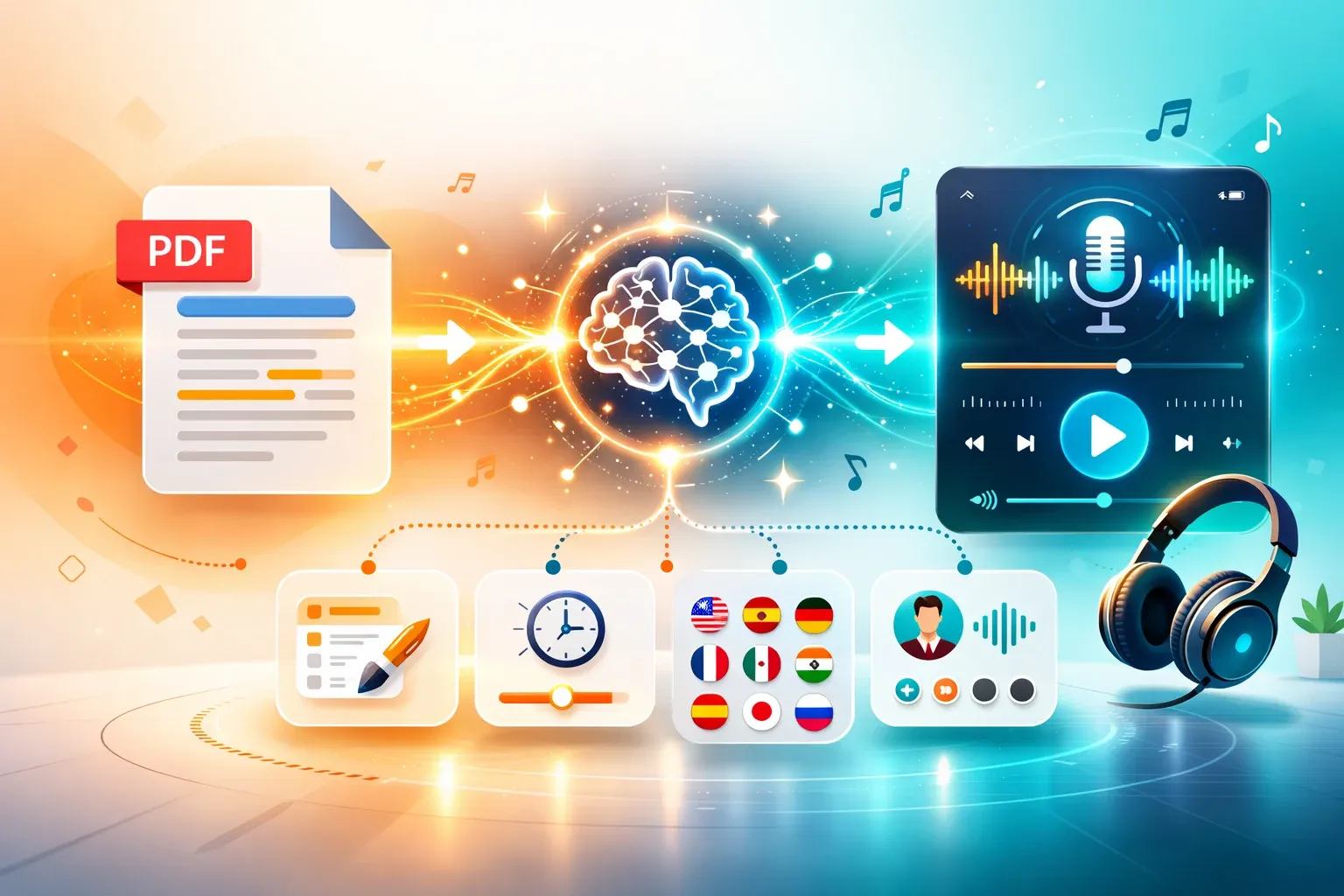
You have a folder full of PDFs you keep meaning to read — research papers, industry reports, textbook chapters. The intention is there, the time never is. Converting PDF to podcast changes that equation entirely. Instead of sitting down with a screen, you absorb the content during your commute, your run, or while doing the dishes.
But there's a wide gap between a tool that robotically reads your PDF word-for-word and one that actually understands the content and produces an engaging podcast-style explanation. This guide covers both approaches and shows you exactly how to get the most out of AI-powered conversion.
What Does "PDF to Podcast" Actually Mean?
The phrase describes two very different things. Understanding the distinction saves you from choosing the wrong tool.
Simple Text-to-Speech (TTS)
Basic TTS tools scan your PDF text and read it back verbatim — every word, footnote, and table header in a flat voice. Problems include reading metadata as body text, stumbling through tables and citations, and missing the document's point entirely.
AI Podcast Generation
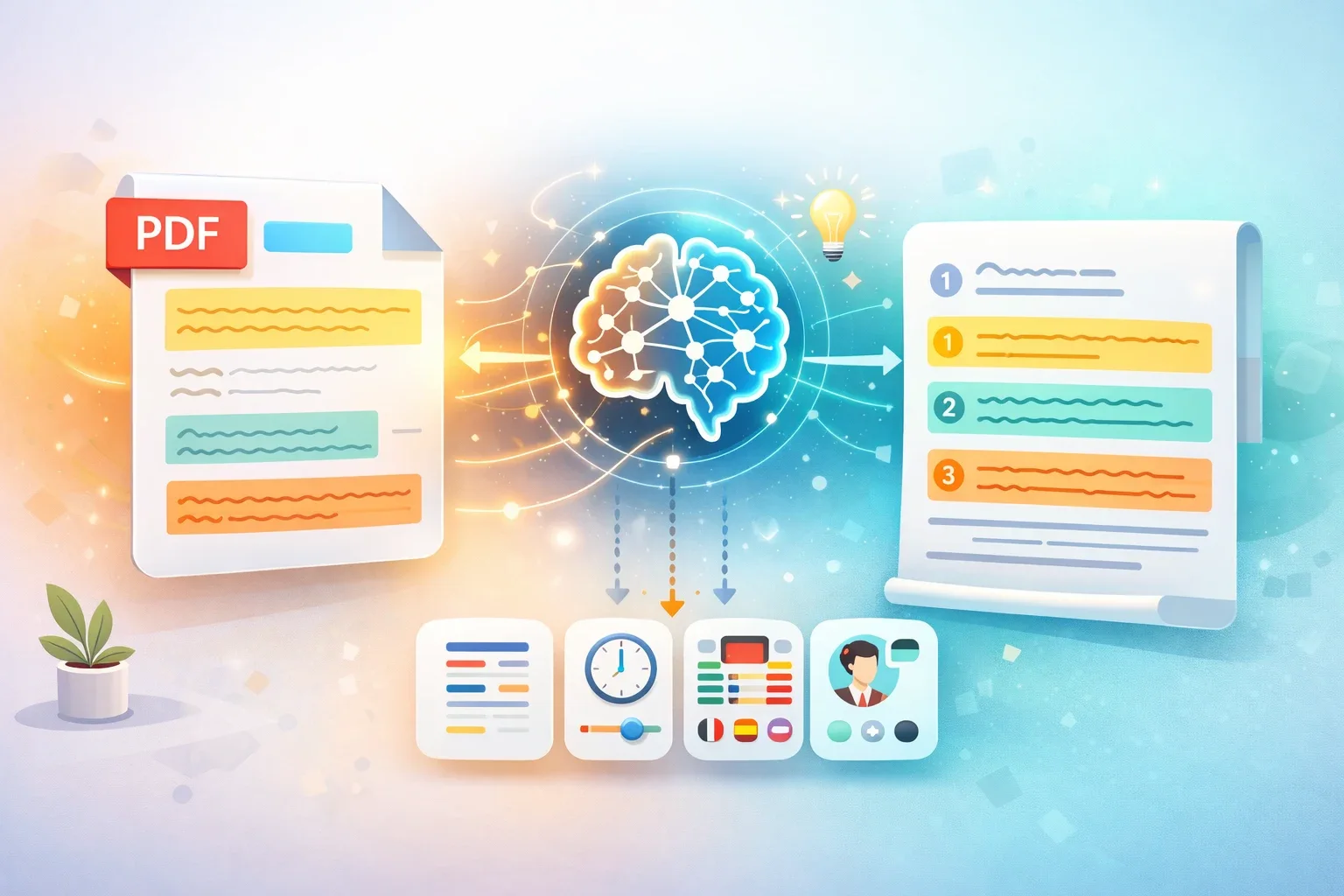
AI tools like TurboCast take a fundamentally different approach. The AI reads and understands the document, then:
- Identifies the core argument, findings, or takeaways
- Restructures information into a logical narrative arc
- Adds context and explanations where needed
- Generates a script written to be heard, not read
- Produces natural-sounding audio in your chosen style and length
💡 The difference is like asking a friend who read the paper to explain it to you versus hitting "read aloud" in Adobe Acrobat.
TTS vs AI Podcast: Why It Matters
| Feature | 🔊 Basic TTS | 🧠 AI Podcast |
|---|---|---|
| Content handling | Reads raw text verbatim | Rewrites for audio comprehension |
| Irrelevant elements | ❌ Reads everything (footnotes, captions) | ✅ Skips and summarizes intelligently |
| Natural pacing | ❌ | ✅ |
| Summarization | ❌ | ✅ |
| Length control | ❌ | ✅ 3 / 5 / 10 min |
| Style options | ❌ | ✅ Podcast, Teacher, Summary, Storyteller |
| Languages | Limited | 30+ |
| Best for | Proofreading, accessibility | Learning, research, professional use |
How to Convert PDF to Podcast with TurboCast
TurboCast makes the conversion straightforward. Here's the full process.
Step 1: Open the PDF to Podcast Tool
Go to /pdf-to-podcast in your browser. No app download required. Free users can start immediately; paid plans unlock larger files and more generations.
Step 2: Upload Your PDF
Drag and drop or click to browse. TurboCast accepts standard text-based PDFs.
| Plan | Max File Size |
|---|---|
| Free | 100 MB |
| Starter / Basic | 300 MB |
| Pro and above | 500 MB |
💡 Tip: Text-based PDFs (exported from Word, LaTeX, Google Docs) produce the best results. For scanned documents, run OCR first using Adobe Acrobat or Google Drive.
Step 3: Choose Your Settings
Four key settings to configure:
Style:
| Style | Best For | Tone |
|---|---|---|
| 🎙️ Podcast | General content, opinion pieces | Conversational, engaging |
| 🎓 Teacher | Academic papers, technical docs | Explanatory, methodical |
| 📋 Summary | Long reports, briefings | Concise, key points only |
| 📖 Storyteller | Case studies, historical content | Narrative-driven |
Length:
| Length | Duration | Best For |
|---|---|---|
| Short | ~3 min | Quick takeaways, screening papers |
| Medium | ~5 min | Balanced coverage with context |
| Long | ~10 min | In-depth treatment of complex documents |
Language: 30+ output languages. Upload an English PDF → get a Spanish podcast. Powerful for language learners and international teams.
Voice: Multiple AI voices with different tones and characteristics.
Step 4: Generate — AI Analyzes the Content
Hit Generate Podcast. Processing takes 1–3 minutes. Behind the scenes:
- Document text is extracted and structured
- AI analyzes content and writes a podcast script
- TTS synthesizes natural-sounding audio
- The finished episode is ready to play
Step 5: Listen, Edit, and Download
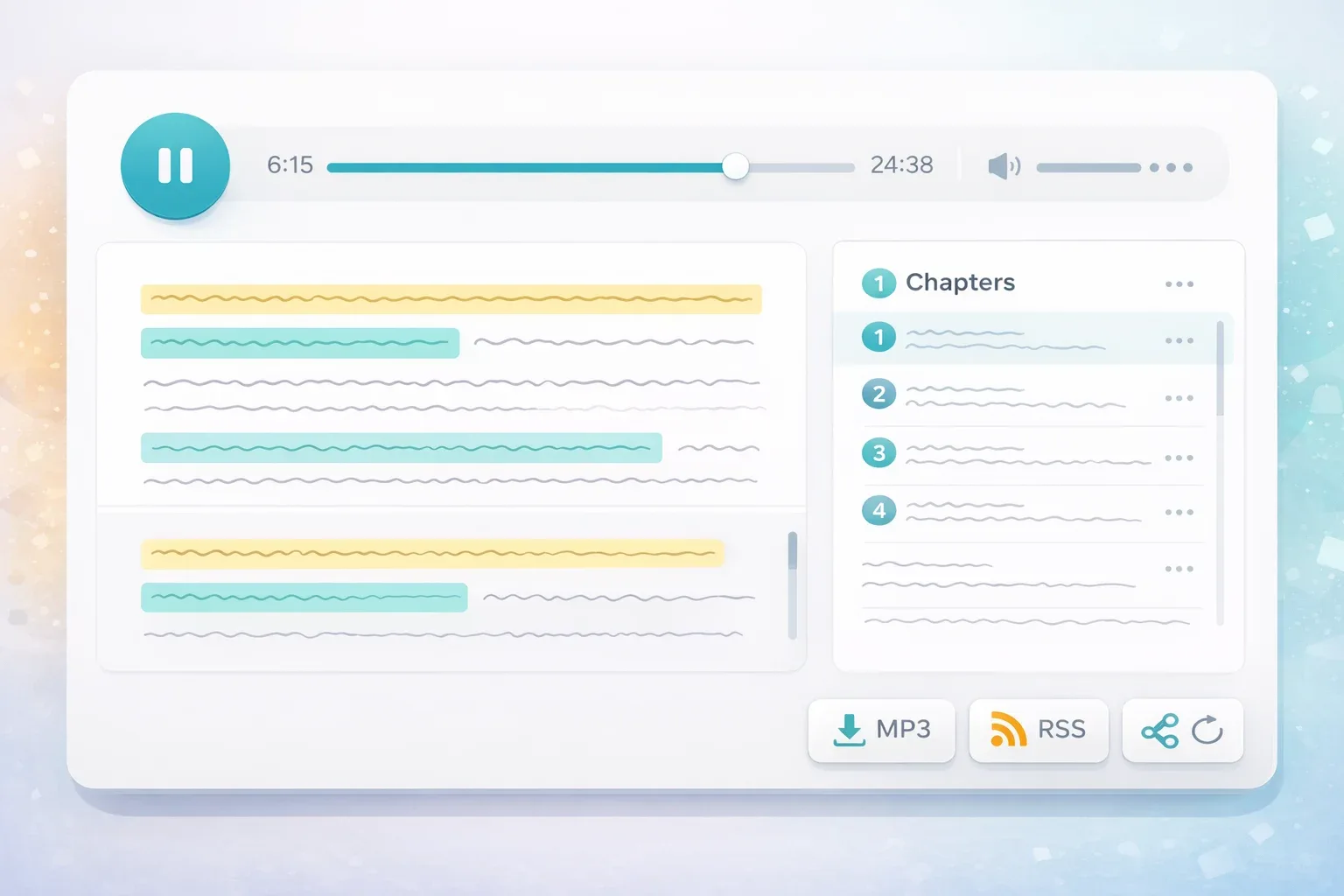
When complete, you get:
- 🎧 Audio player — Play in browser with speed controls
- 📝 Generated script — Read along or edit before finalizing
- 📑 Chapter markers — Jump to specific sections
- 📥 MP3 download — Save to your device, listen anywhere
Step 6: Add to Your Private Podcast Feed (Optional)
Convert PDFs regularly? TurboCast adds each episode to a private RSS feed you can subscribe to in Apple Podcasts, Spotify, Overcast, or any podcast app. Your feed grows automatically as you add documents — the most convenient way to stay on top of reading lists.
Best PDF to Podcast Tools Compared (2026)
TurboCast — Recommended
| Type | 🧠 AI Podcast Generator |
| Price | Free tier; from $15/month |
| Languages | 30+ |
| Best for | Students, researchers, professionals |
The most fully featured option. True AI comprehension, 4 styles, 30+ languages, private RSS feed, script editing, MP3 download. Free tier with 3 conversions/day.
Google NotebookLM
| Type | 🧠 AI Podcast Generator |
| Price | Free |
| Languages | English only |
| Best for | Casual English summaries |
Free two-host conversation-style audio. Engaging but no customization — no length/style control, no download, no RSS, English only.
Speechify
| Type | 🔊 TTS Reader |
| Price | Free tier; $139/year |
| Languages | 30+ |
| Best for | Word-by-word reading, accessibility |
Premium TTS with excellent voices and speed controls. Reads verbatim — no content restructuring.
ElevenLabs Reader
| Type | 🔊 TTS Reader |
| Price | Free tier; from $5/month |
| Languages | 29+ |
| Best for | Best voice quality (TTS) |
Industry-leading voice synthesis. Reads verbatim without content understanding. Best when voice quality is the top priority.
Tool Comparison
| Tool | AI Understanding | Styles | Languages | RSS Feed | MP3 Download | Free |
|---|---|---|---|---|---|---|
| TurboCast | ✅ Deep | 4 | 30+ | ✅ | ✅ | ✅ |
| NotebookLM | ✅ Partial | ❌ | English | ❌ | ❌ | ✅ |
| Speechify | ❌ TTS | ❌ | 30+ | ❌ | Limited | ✅ |
| ElevenLabs | ❌ TTS | ❌ | 29+ | ❌ | ✅ | ✅ |
Tips for Better PDF to Podcast Results
Use Clean, Text-Based PDFs
PDFs from Word, LaTeX, or Google Docs contain selectable text the AI processes accurately. Scanned PDFs are images — run them through OCR (Adobe Acrobat or Google Drive) before uploading.
Keep Documents Under 50 Pages
A 10-page paper generates a more focused podcast than a 200-page textbook. For long documents, extract the chapters you care about most.
Match Style to Content Type
The single most impactful setting:
- 📄 Academic papers → Teacher (explains jargon and methodology)
- 📊 Executive reports → Summary (cuts to findings and recommendations)
- 📰 Industry articles → Podcast (engaging and conversational)
- 📖 Case studies → Storyteller (creates a narrative arc)
Choose the Right Length for Your Goal
Just want to know if a paper is worth reading? → 3 min. Need to discuss it in a meeting tomorrow? → 10 min. A tight 5-minute episode often communicates more clearly than a sprawling 10-minute one.
Try Cross-Language Conversion
Upload a document in your native language, generate a podcast in the language you're learning. You already know the content — focus entirely on vocabulary and phrasing. A powerful immersion technique.
Handle Data-Heavy Content
The AI summarizes key trends from tables rather than reading every cell. If precise numbers matter, keep the original PDF open alongside the audio for reference.
Use Cases: Who Benefits Most?
Students
Convert textbook chapters to audio for your commute. A 3-minute Teacher podcast of a dense chapter gives you key concepts before sitting down to read the full thing — making the reading itself much faster.
Researchers
Convert newly published papers into AI podcast summaries. Listen to 5-minute summaries of 10 papers during a workout. Pull up full papers for the 2–3 that are genuinely relevant.
Professionals
A 10-minute Summary podcast of a quarterly report is something you can listen to driving to the office. No more skimming in the meeting room five minutes before it starts.
Language Learners
Upload any document and generate a podcast in your target language. The PDF to audio feature supports 30+ languages with natural voices. Content relevant to your actual work — far more effective than generic language apps.
Accessibility
For users with dyslexia, visual impairments, or reading difficulties, AI podcast conversion makes any document accessible. The restructuring step is especially helpful — dense text becomes clear, flowing explanations.
Frequently Asked Questions
Can I convert any PDF to a podcast?
Text-based PDFs work best. Password-protected PDFs cannot be processed. Heavily image-based or scanned PDFs without OCR produce poor results. Standard PDFs — papers, reports, ebooks — work well. File size limits: 100MB free, up to 500MB on Pro.
How accurate is the AI with complex technical documents?
Very accurate for most content. The AI correctly identifies central arguments, methodology, and key findings in scientific, legal, and financial documents. For highly specialized notation or symbols, some nuance may be simplified. Review the generated script if precision is critical.
Will the podcast include exact wording from my PDF?
No — and that's the point. TurboCast rewrites content for audio, capturing meaning while restructuring for clarity. Direct quotes are preserved when important. You can view and edit the script before downloading.
How long does conversion take?
Most PDFs process in 1–3 minutes. Very long documents (50+ pages) may take 4–5 minutes. Processing happens server-side — you don't need to keep the tab open.
Is my PDF data kept private?
Yes. TurboCast processes your document to generate the podcast and does not share content with third parties. Documents are stored temporarily for processing, then cleared. See the privacy policy for details.
Start Converting Your PDFs to Podcasts
PDFs don't have to stay unread. Upload, configure, generate, listen — whether you're a student, researcher, or professional.
Try TurboCast free — convert your first PDF to a podcast in under 3 minutes
No credit card required. Free users get 3 conversions per day. See pricing for paid plans with unlimited audio, longer documents, and private RSS feeds.