
AI Meeting Summarizer
Record the room or upload a Zoom, Teams or Meet recording. Get the decisions, the action items with owners and due dates, and the questions still open.
See what you get from a real meeting
The Meeting, Minus the Meeting
The AI meeting summarizer reads the whole recording so you only read what changed.
3 lists decisions, action items and open questions, pulled from every meeting
decisions, action items and open questions, pulled from every meeting
0 bots nothing joins your call; you record or upload when it's over
nothing joins your call; you record or upload when it's over
3 a day free meeting summaries, up to 30 minutes each, no card needed
free meeting summaries, up to 30 minutes each, no card needed
See a Real Meeting Summary
Four sample meetings, run through the AI meeting summarizer the same way yours would be. Pick one to see the transcript and the summary side by side.
0:00Okay, I think that's everyone. Kenji, I think you're on mute. No, there you go.
0:07Sorry, sorry. My dog has decided the delivery guy is a threat. He's fine now. Mostly.
0:14Ha, no worries. Before we start, did anyone else get the email about the office coffee machine? Apparently the new one needs an app to make an espresso.
0:27Of course it does. I'm bringing my own kettle. Okay, sorry, go ahead, Priya.
0:34Okay, so quick agenda. Release 3.4 status, the Northgate bank sync latency, and Aisha has the onboarding test results. Kenji, let's start with you. Where are the beta numbers?
0:47Yeah, so the beta is at 412 users now. Crash-free rate is 99.2, sorry, 99.1 as of this morning. Our bar for shipping is 99.5, so we're under it.
1:02And almost all of that is one crash. It's the CSV export on older phones, anything still on OS version 10. If you export more than a few hundred transactions, the app just dies.
The first minute of the transcript. Times are minutes:seconds into the recording.
Team Sync: Release 3.4, Bank Sync, and Onboarding Redesign
The team met to review the status of release 3.4, addressing critical crash issues with the CSV export feature, Northgate bank sync latency, and onboarding usability test results. Due to a crash affecting older devices on CSV export, the team decided to remove the feature from release 3.4 and defer it to 3.5, shifting the release date to Thursday the 12th to allow for a full regression pass. Additionally, they evaluated onboarding flows and decided to adopt the shorter three-screen option B. The meeting concluded with clear task assignments for feature flagging, regression testing, specs delivery, and release communications, while leaving the Northgate API latency cause and shared budget pricing open.
Names mentioned:KenjiPriyaMarcoAisha
Decisions3
- Remove CSV export from 3.4 and move it to 3.5 — The crash is in that code path, only about 3% of users touch it, and the fix is too risky for this week.2:51
- Move 3.4 release from Tuesday the 10th to Thursday the 12th — We need a full regression pass after the flag change and we're not shipping under 99.5 crash-free.3:58
- Go with option B for onboarding — Five out of six finished versus three out of six, and it's less engineering work.6:44
Action items4
- 3:08
Put export behind a feature flag and flag it off by Friday
MarcoDue: Friday - 3:47
Complete full regression testing by Wednesday end of day
KenjiDue: Wednesday end of day - 4:13
Update release notes and inform support about the new date
No owner namedDue: end of day today - 6:56
Finish option B specs in Figma and hand them off
AishaDue: Monday
Open questions2
- Is the Northgate bank sync latency caused by API rate limiting or our retry logic?5:27
- Will shared budgets be free or Plus only?7:11
The meetings are fictional. The summaries are shown exactly as the AI meeting summarizer returned them, with no edits.
How to Summarize a Meeting in 4 Steps
From recording to shareable notes in a few minutes. No setup, no calendar access, no app to install.
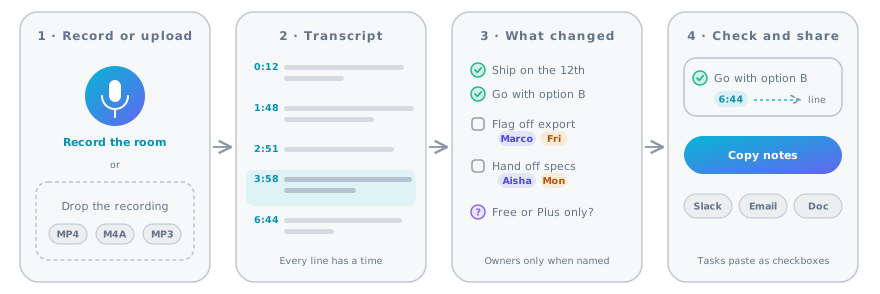
1.Record or upload
Press record for a meeting in the room, or drop the file your meeting app saved: MP3, M4A, WAV, MP4, MOV or WEBM.
Tip
Put the phone or laptop in the middle of the table. Closer is clearer.
2.Get the transcript
The recording becomes a timestamped transcript in the language the meeting was held in.
Tip
Meetings up to 30 minutes are free. Paid plans go up to 3.5 hours.
3.Get the decisions and tasks
The AI meeting summarizer writes a short recap, then lists the decisions, the action items with owner and due date, and the open questions.
Tip
Owners and dates come only from what was said. If nobody took a task, it says so.
4.Check and share
Click a time to see that line in the transcript. Then copy the notes into Slack, an email or your team doc.
Tip
Copied action items arrive as checkboxes, ready for a task list.
What the AI Meeting Summarizer Pulls Out
A transcript tells you everything that was said. A meeting summary tells you what changed. Each summary has four parts, in the order people need them.
A short recap
One paragraph on what the meeting was about and where it landed, for anyone who missed it.
Decisions, with the reason
Only what the group agreed on, not ideas that were floated and dropped.
Action items with owners
Each task with the person who took it and the deadline they said, like "Priya, by Friday".
Open questions
What was parked for later, so it doesn't get lost before the next meeting.
No Bot Joins Your Meeting
Many meeting tools send a bot into the call, and someone has to let it in. This AI meeting summarizer works from the recording, so nothing joins and nothing needs calendar access.
Record in the room
For in-person meetings, interviews and phone calls on speaker. The recording runs in your browser.
Upload what your app saved
Zoom, Microsoft Teams and Google Meet all save recordings you can download and drop in.
Paste a transcript
Already have the text? Paste it or upload the TXT or DOCX, and the summary opens as Smart Notes.
Get the Recording From Zoom, Teams or Meet
Where each app keeps the recording, and which file to upload.
| Where you met | Where the recording is | What to upload |
|---|---|---|
| Zoom | Local recordings: the Zoom folder in Documents. Cloud recordings: Recordings in the Zoom web portal. | The M4A audio file (smaller) or the MP4 |
| Microsoft Teams | The meeting chat, saved to OneDrive or SharePoint | Download the MP4 |
| Google Meet | The organizer's Google Drive, in Meet Recordings | Download the MP4 |
| Phone or voice memo | Your recorder or Voice Memos app | The M4A, MP3 or WAV file |
| In the room | Not recorded yet | Press Record on this page |
Meetings It Summarizes Well
Any meeting where people decide things and hand out work. These are the ones people bring to the AI meeting summarizer most.
Team syncs and stand-ups
Who's blocked, what moved, what's due this week, without anyone taking notes.
Sales and client calls
The client's needs, the next step you promised and the date you promised it.
Project kickoffs
Scope, owners and the first deadlines, written down while everyone still agrees.
Retros and post-mortems
What went wrong, what you'll change and who follows up.
Interviews and research calls
The answers that matter, with times to find the exact quote.
Trainings and onboarding
The summary plus flashcards and a short quiz to check what stuck.
Meeting Summary, Minutes or Transcript?
Three ways to record a meeting, for three kinds of readers.
| Meeting summary | Formal minutes | Full transcript | |
|---|---|---|---|
| Length | Half a page | 1–3 pages | Every word |
| Best for | Teammates who missed it | Boards and committees | Checking exact wording |
| Decisions and tasks | Listed up front | Recorded formally | Buried in the text |
| Time to read | 2 minutes | 10 minutes | As long as the meeting |
| On this page | Start from the summary | Yes, with timestamps |
After the Summary
Every meeting you run through the AI meeting summarizer is saved in your History, with a few ways to use it.
Share the notes
Copy the recap, decisions and tasks in one click and paste them where your team works.
Study a training session
Open flashcards and a quiz made from the same meeting.
Listen to a recap
Paste the summary into the AI podcast generator for a short audio recap.
Privacy and Consent
Meetings are full of things that shouldn't travel. Here's how the AI meeting summarizer handles recordings.
Meeting Length and File Size by Plan
The AI meeting summarizer is free on every plan. Paid plans take longer meetings and have no daily limit.
| Plan | Longest meeting | Largest file | Meetings per day |
|---|---|---|---|
| Free | 30 minutes | 100 MB | 3 |
| Starter | 60 minutes | 300 MB | Unlimited |
| Basic | 2 hours | 300 MB | Unlimited |
| Pro, Team, Enterprise | 3.5 hours | 500 MB | Unlimited |
AI Meeting Summarizer FAQ
Short answers to what people ask before they upload a meeting.

Summarize Your Next Meeting
Record it or upload it, and get the decisions, the action items and the open questions in a few minutes. Free for 3 meetings a day.